
First decide what you cannot see
A dark corner, an unclear outline, and a difficult-to-read label need different adjustments. A flashlight addresses the scene in front of you. Ghost color changes the restoration outline's color. Held Items Background affects the backing behind the list of pieces you carry. HUD Background affects the other on-screen text elements described in the official update.
Pick one example before changing settings. Stand near the fragment or display that is giving you trouble, then adjust a single control. Compare the same object again. This makes the result easier to judge than walking into another room immediately after changing several settings at once.
Do not assume that a fragment has vanished just because its outline is hard to distinguish. Likewise, making a label easier to read does not retrieve a fragment that is genuinely out of reach. The goal is to separate readability problems from recovery problems before you spend more time searching.
Cycle flashlight brightness deliberately
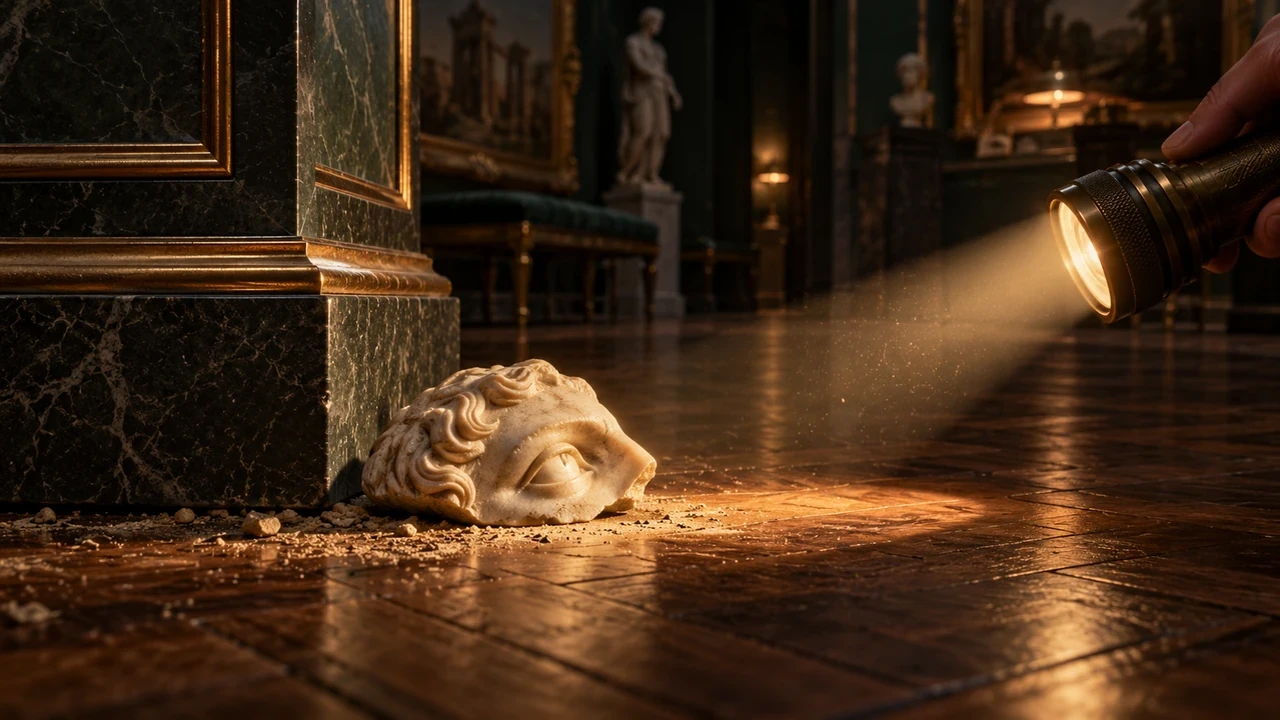
The 27 September patch introduced the flashlight's brightness cycle and its keyboard and controller controls. Try the available brightness levels on the same area. A higher setting may suit a dark floor, while a lower setting may feel more comfortable when inspecting a bright surface. That preference depends on what you can see; this guide does not prescribe a universal screen brightness or gamma value.
If pressing F does nothing, check your configured control binding rather than assuming the default applies. If you use a controller, remember that the developer describes a held Select input, not simply a quick press. We have not verified a label for every controller model, so compare that instruction with the controls shown in your installation.
Once the area is readable, inspect fragment shapes and edges. Our suggested search routine is to check the open floor first, then nearby corners and object boundaries. It is an observation method, not a list of guaranteed fragment coordinates. If you are already near completion and searching produces no result, check Lost & Found rather than cycling the flashlight indefinitely.
Make outlines easier to distinguish
Distinct Colors is in Options > Game > Interface, according to the 27 September update. A later update added the ability to change Ghost color in Options. Use a color that you can distinguish from the surface behind the exhibit. Test it against a difficult display, not only against an empty wall where every outline would be obvious.
If several exhibit outlines remain confusing even after improving color contrast, use Easy Placement. That option changes which exhibit's outlines are shown for the piece. Color settings improve visibility; Easy Placement reduces exhibit ambiguity. They solve different parts of the same inspection task.
An outline that is clearly visible but belongs to the wrong set needs another check. For an active skill such as Insight, confirm the fragment you are holding before activation. Changing Ghost color will not correct a wrongly selected target. The Insight guide covers that distinction.
Read the held-item list and other labels
The official HUD update places both background controls in Options > Game > Interface. Held Items Background concerns the carried-piece list at the top left. HUD Background concerns other interface text, including counters, the looked-at name, the room plaque, and tutorial text.
Adjust the backing until the text is easy to read against the museum scene. Then check a long fragment name and the remaining-piece count. This is especially useful before sending a bug report: an exact label is more helpful than describing a fragment only by its approximate color or shape.
These are background controls, not a verified interface-scale option. Do not look for a promised text-size slider merely because a discussion contains a request for smaller or larger UI. A requested feature and an implemented control are different things.
When a settings change is not enough
If lighting or text still behaves incorrectly, describe the affected room, label, or outline when reporting the problem. Note which specific setting you tried and what changed. A useful screenshot should show the game display and the affected setting or fragment label, so the developer can compare the expected appearance with the problem you are seeing.